Printing Returns in Municipal
Overview
In Stratus Municipal Pro, municipal returns are downloaded as PDF files before they are printed.
This is different from Premium Pro Enterprise, where returns were printed from the File menu or print icons.
Review Print Options First
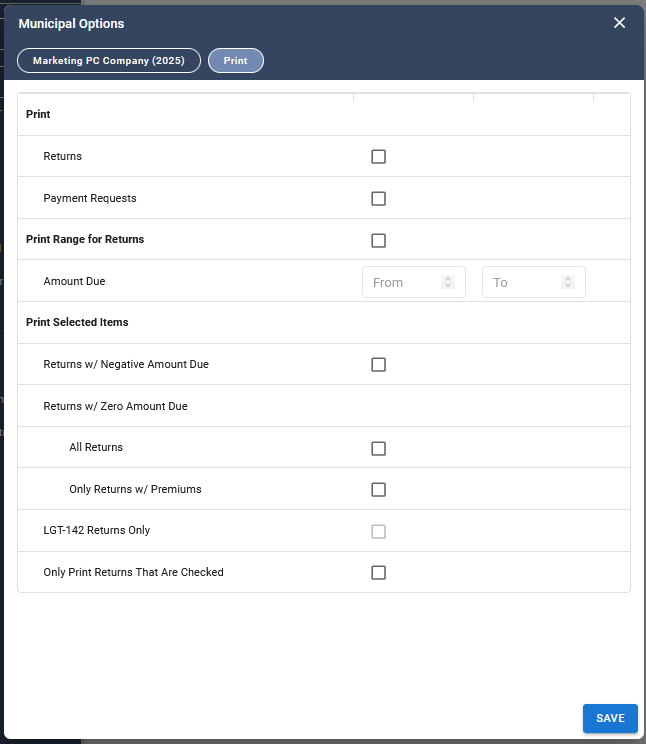
Before downloading final return files, review the print and download options.
- Select the Options gear icon at the top of the Municipal screen.
- Open the Print options.
- Select the return and payment request options you want to use.
- Select Save.
Download All Municipal Returns
- In the Municipal navigation pane, locate Municipal Returns for the selected filing period.
- Right-click Municipal Returns.
- Select Download All Municipal Returns.
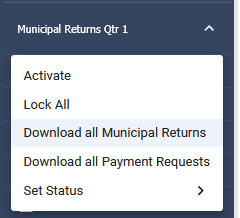
The downloaded PDF uses the print and download options selected in Municipal Options.
How Print Options Affect Downloads
Print options control which returns appear in the downloaded PDF.
For example, if your options are set to include only returns within a specific amount range, the downloaded PDF includes only the returns that match those settings.
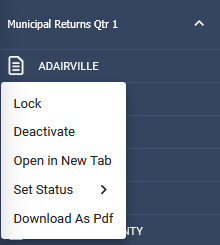
Download One Return
- Open the return.
- Select the Download icon on the right side of the screen.
Mailing Address Placement
Municipal returns are formatted so the mailing address appears near the bottom of the return.
When the return is folded, the address is positioned to fit inside the window of a standard window envelope.
Important
Always review the downloaded PDF before mailing or submitting returns. Confirm that the PDF includes the expected returns and, if selected, the related payment requests.
Related Articles